Parameter Based Filtering in Tableau:
In Tableau, filters are used to extract relevant data from a large dataset, making it easier for users to focus on the information they need. Parameters allow users to dynamically control data by entering or selecting values in a parameter field.
Last time, we explored parameters; now, let’s see how they bring interactivity to the Filters.
Let’s get started with our steps to create an interactive visualization:
Before starting with our steps, I have created a viz using Order Date (month) into the columns and Sales into the rows and sub-categories into the colors.

At this point, we will proceed with the steps to filter data using a parameter:
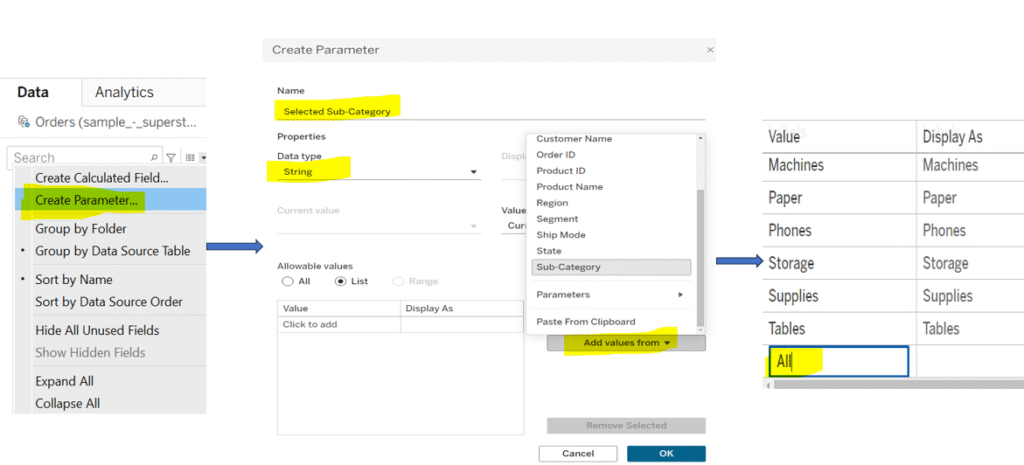
Step 1: Look around for dropdown menu in your data pane and select an option naming , ’create parameter’, and a window would appear for the parameter’s details, here’s what i have added; name (selected sub-category), data type (string), allowable value (list) and chose sub-category for the list from the workbook.
Note: If you want to show not just a selected sub-category but also all sub-categories in your view, you need to manually add ‘All’ to the parameter list. Once the parameter is created, it will appear at the bottom of the data pane.
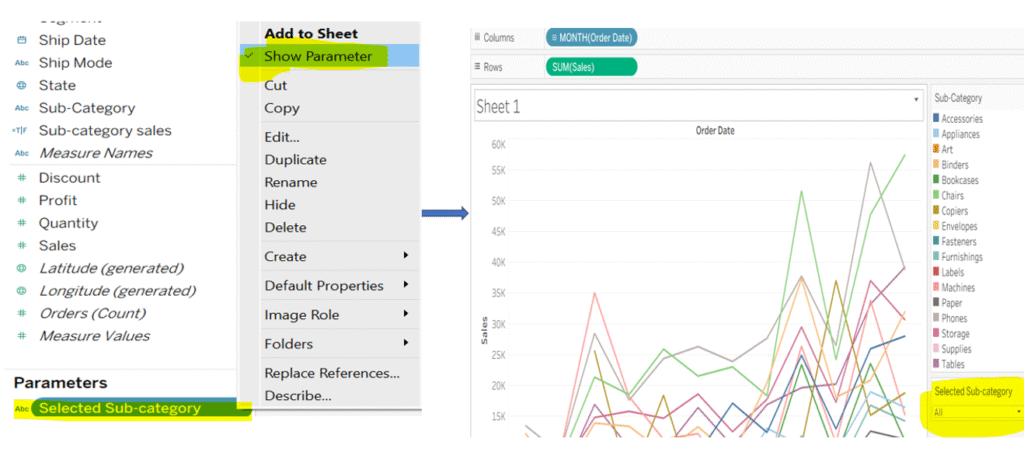
Step 2: Click on recently created parameter (Selected sub-category) and select show parameter, once you do it, it will appear on the right side of your view but it will not work until you wire it with the calculated field.
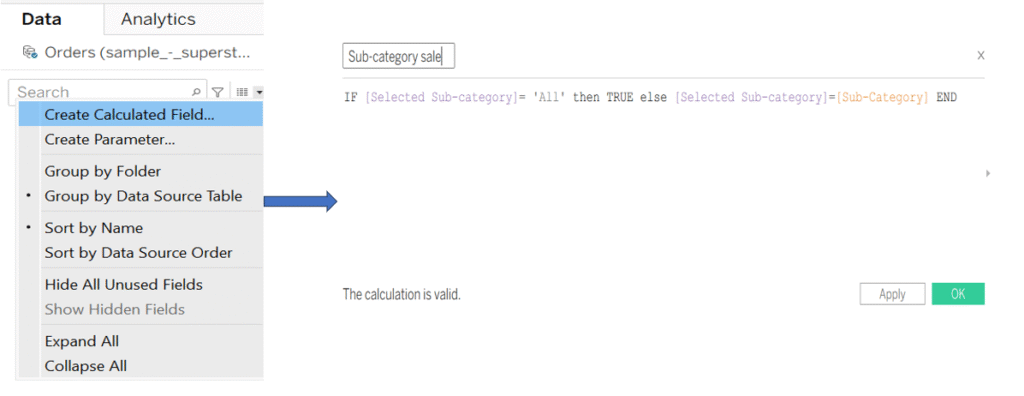
Step 3:To make the parameter work, create a calculated field by going to the data pane, and clicking on the dropdown arrow, and selecting ‘Create Calculated Field’. Enter the logic mentioned below.
You’ll notice a purple field, this represents the parameter we created and an orange field, which is the actual dimension.
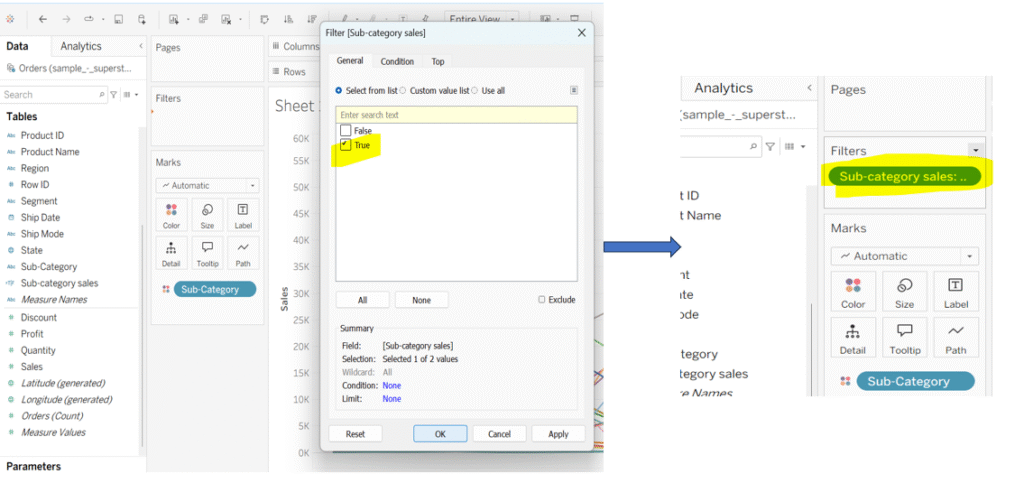
Step 4: To make the calculated field (Sub-Category Sales) work as a filter, drag it onto the filters shelf. When you do this, a window will appear asking you to choose between ‘True’ and ‘False’. Select ‘True’, this tells Tableau to display only the data that meets the logical condition defined in the calculated field.
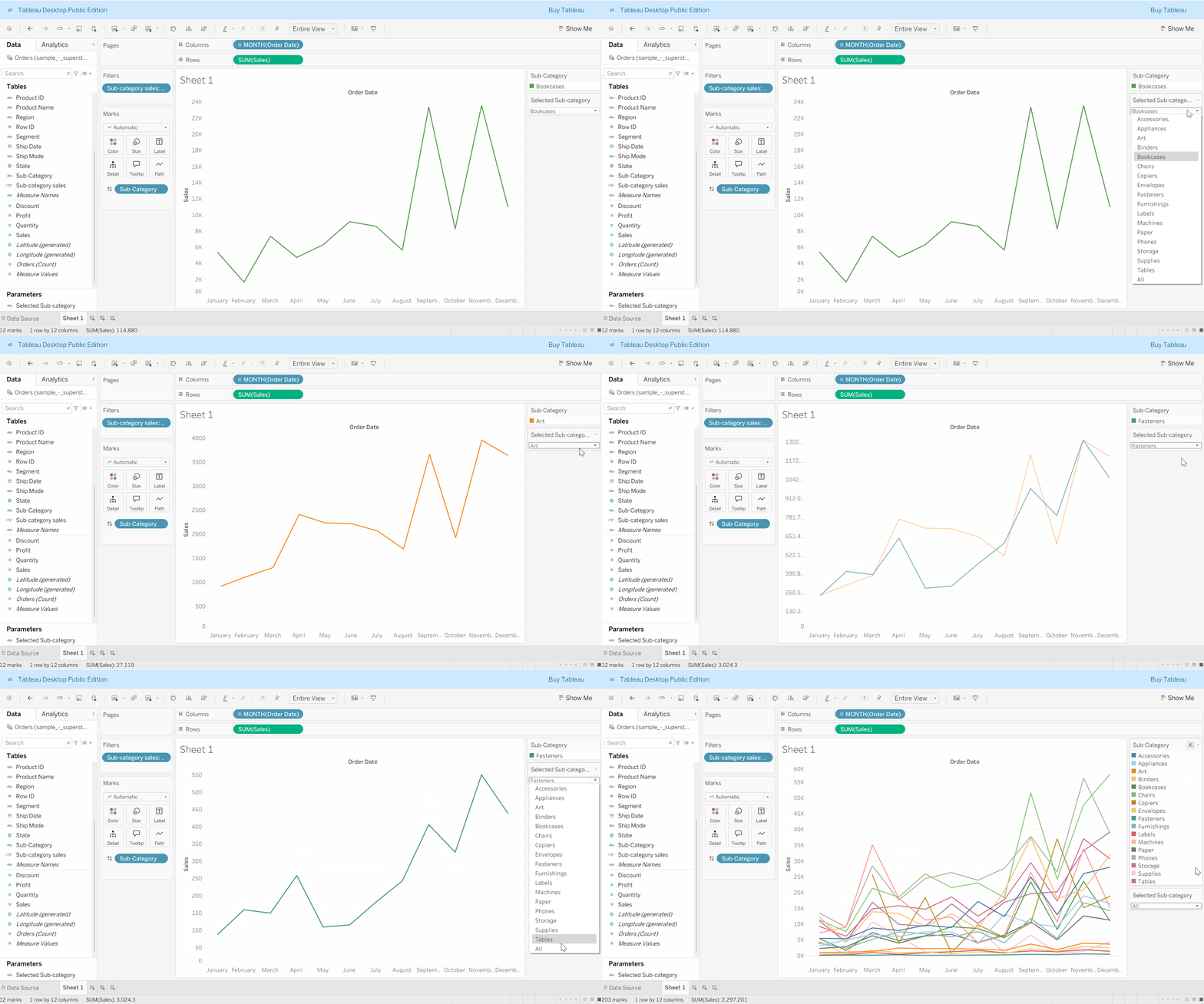
Here is the output:
keep Learning!
Thanks for supporting.