Sets and Set Action in Tableau:
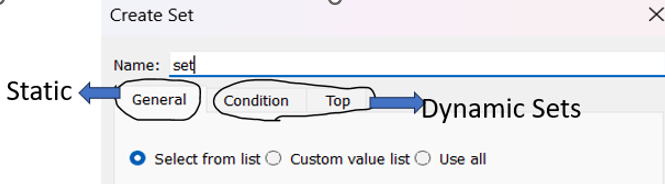
Sets are used to group multiple values within a field or from multiple fields in the dataset. This grouping can be based on specific characteristics, such as the top 10 ranking (by using formula), alphabetical initials (using condition), or certain values within the dataset.
Types of sets:
1- Static
2- Dynamic (based on ranking and condition)
Set Action:
It is used for user interactivity, allowing users to change set values dynamically.
To better understand the topic, we first need to decide which dimension to apply the set action to. In this case, we’ll use ‘Region’ as the dimension, so that when a user clicks on a region, sales within each ‘category’ of the region would appear dynamically.

Let’s get started with the steps:
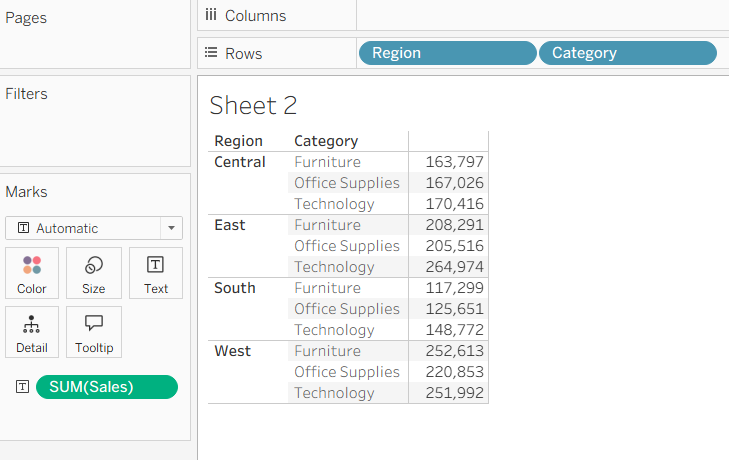
Step 1: Add Region and category into the rows and sales on text in the marks card.
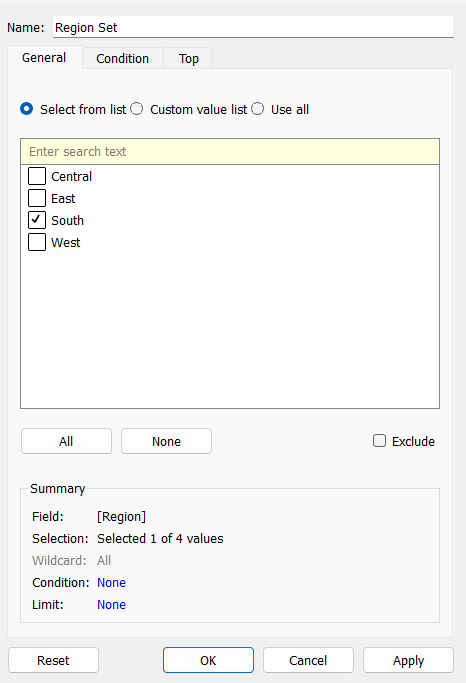
Step 2: Click on region field and access field options, select create set, a new window will show up, now add the details. Here, I am adding the name of the set(Region Set) and choosing a value (South) for now.
After creating a set and place it on the rows shelf, it only shows ‘In’ and ‘Out’.
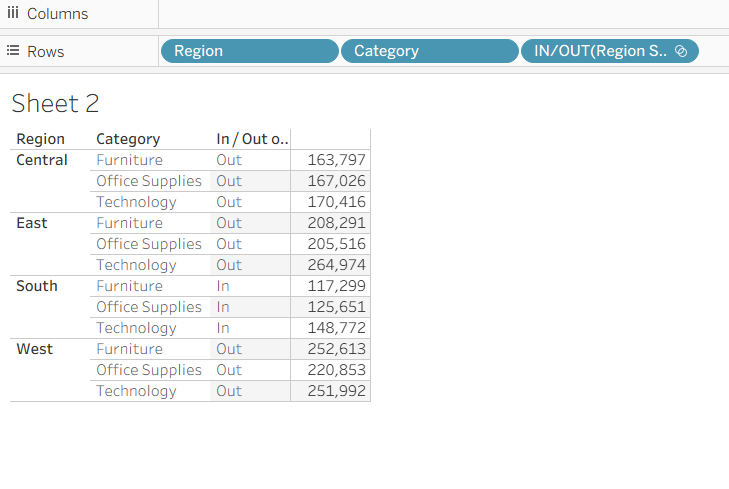
However, I want it to show categories based on what’s in the set (Regional Set) and hide categories for what’s outside the set. For that, I need to use a calculated field.
Step 3: Create a calculated field and include the set within it so that it shows category for what’s in the set, otherwise it shows blank.
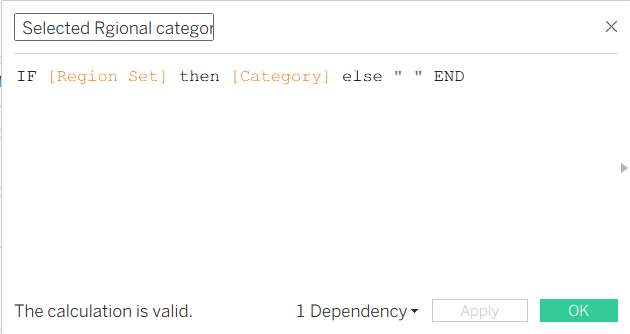
Then, drag the calculated field (selected regional category) to the rows shelf, it will show the data accordingly.
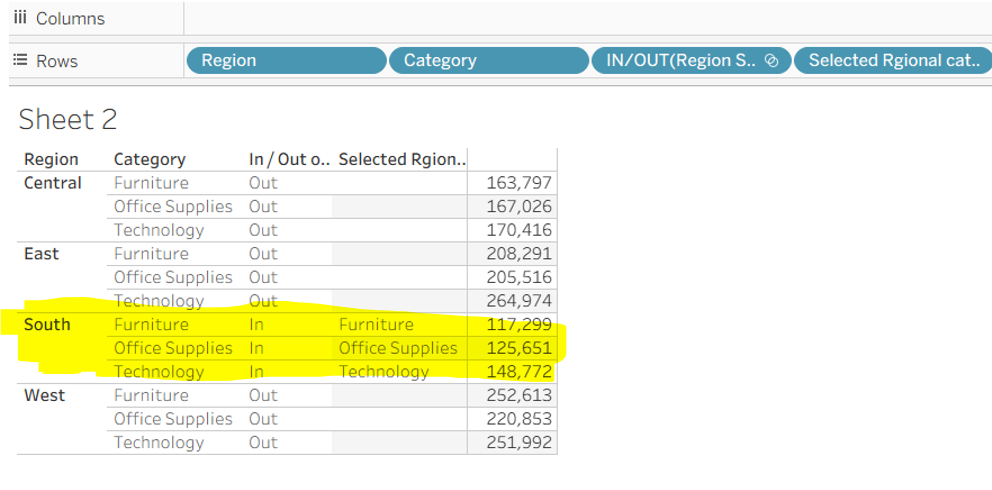
Notice, it only shows the category within the south region based on the static set. However, to make this interaction dynamic, we need to use set actions.
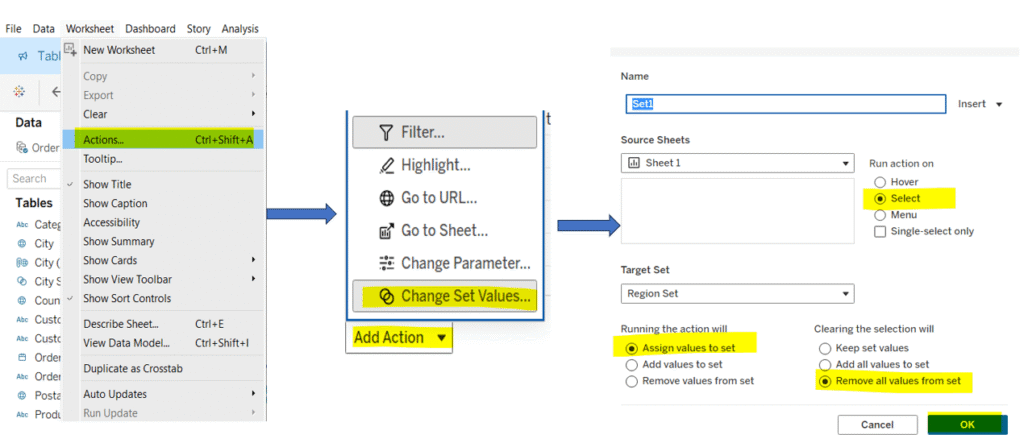
Step 5: Go to the worksheet and choose ‘Actions’ from the top submenu. In the window that appears, click on the ‘add action’ dropdown and select change set values. A new window will appear where you can configure the set action, including the source sheet, target set, how the action is triggered, and what happens when the selection is cleared.
Now , only keep the Region and the newly created calculated field (Selected Regional Category) on the row shelf. And click on any of the regions, you would notice, category would appear accordingly, giving it an illusion of a dropdown menu.
I hope you enjoyed learning from my blog!
Thank you!